Object detection and defect detection software

From photos to a tested model in four steps

Each step tells you what to do next. You do not need to know how the AI works inside.

1Build a dataset

Create a dataset and name the things the model should learn to find, such as 'bolt' or 'scratch'. These are your classes. Then mark them in your images: draw a box around each object, trace its exact outline (polygon), or place points on fixed spots of it (keypoints). For outlines, SAM 2 helps: click the object once and the app draws the outline for you to adjust.

You get a labeled set of images, split automatically into images to train on and images to test with.

  • Auto-label. Once you have a trained model, let it label new images for you. Its suggestions arrive as drafts in the labeling screen; you check them, fix what is wrong and save.
  • Augmentation. Add flipped, rotated or brightened copies of your images, so the model learns from more examples.
  • Auto-balance. If one class has far fewer examples than the others, the app adds extra cut-outs of it to the training images.
  • Label Studio. Already label in Label Studio, a separate labeling program? You can import its labels instead.
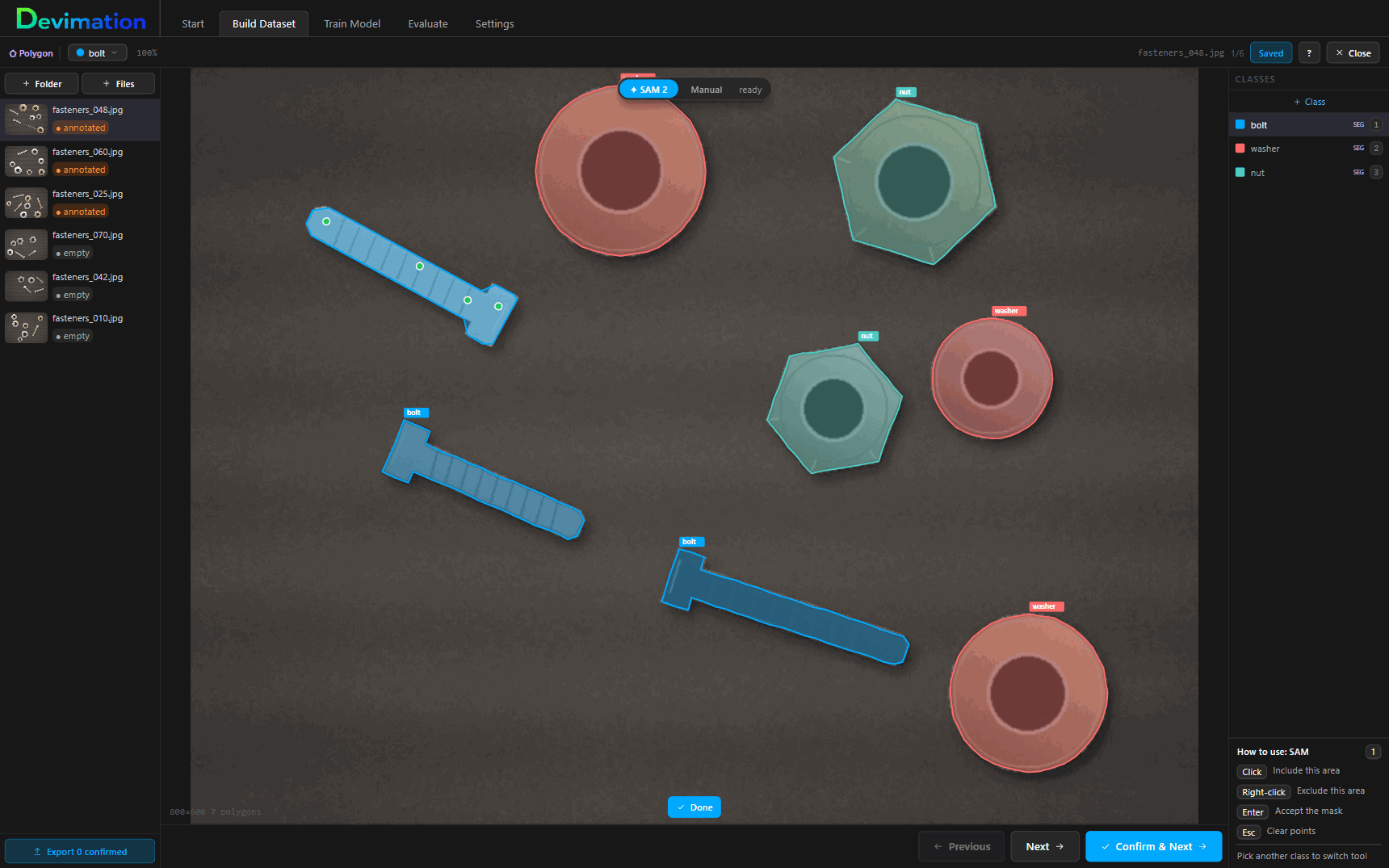
The Devimation Studio labeling screen: bolts, washers and nuts traced as outlines, with SAM 2 drawing the outline of one more bolt from a few clicks

2Train a model

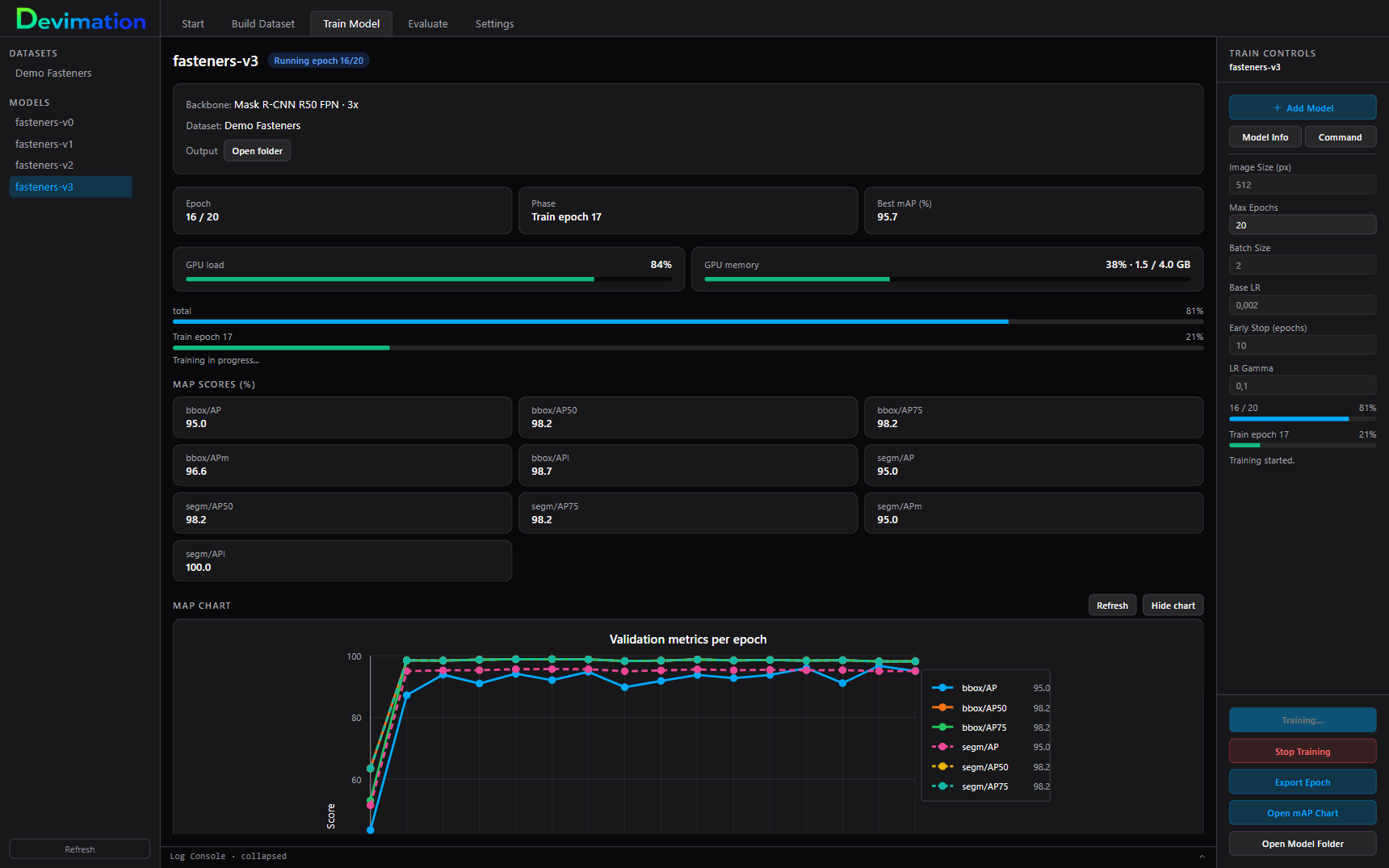
Pick your dataset and a model size, and press Start Training. Training runs on your own GPU. You can stop it and continue later from where it stopped.

You get a trained model, with a score and a chart that show how well it is learning. A built-in tour explains what the score means.

  • Three kinds of model. One finds objects and draws a box around them (Faster R-CNN). One also places keypoints on them (Keypoint R-CNN). And one traces the exact outline of each object (Mask R-CNN).
  • Three sizes. A larger model can be more accurate but needs more VRAM. The app shows how much before you start.
The Devimation Studio training screen during a run, with the training progress, the best score so far and a chart of the score per epoch

3Test the model

Run the model on test images it did not see during training, or on photos of your own.

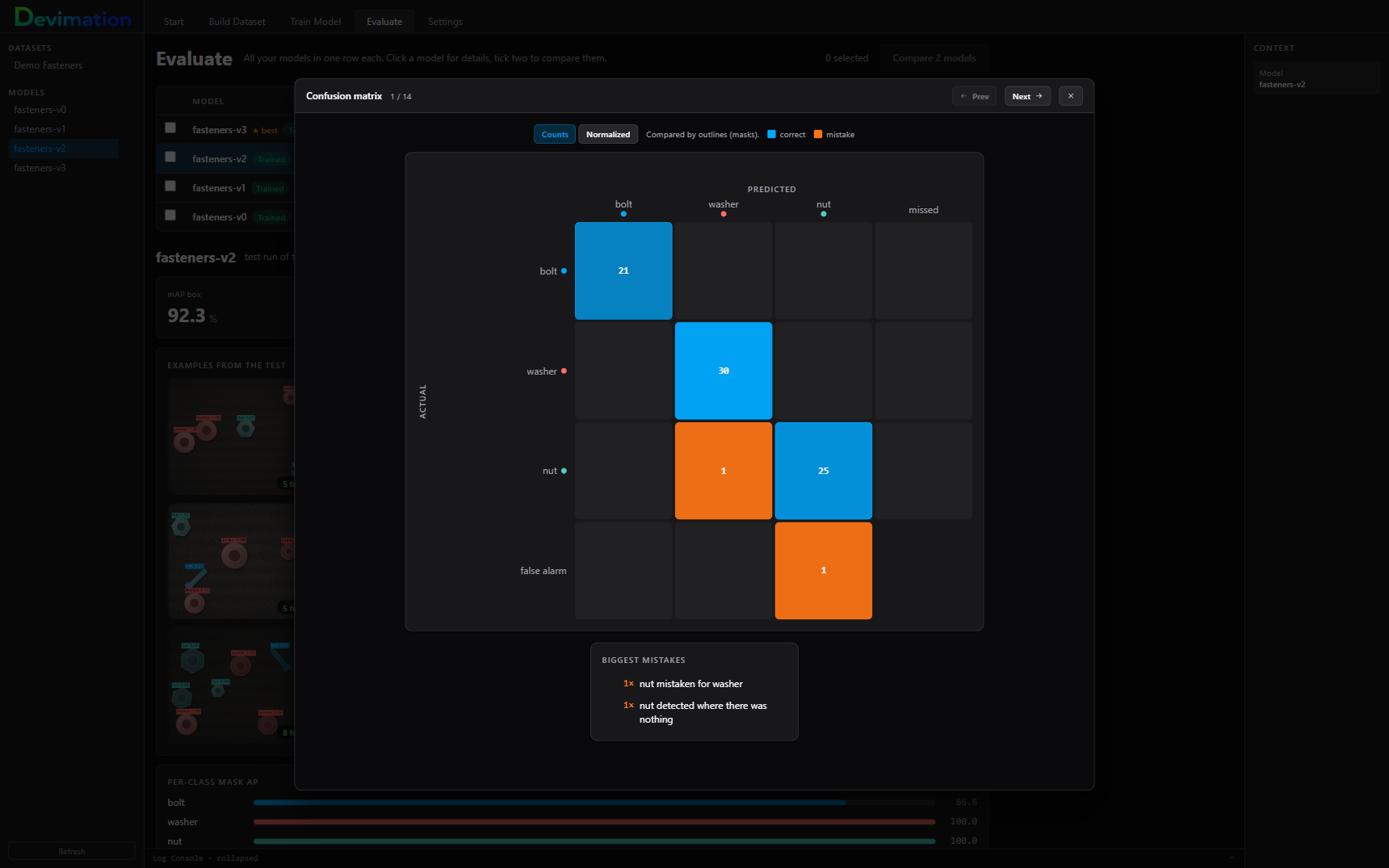
You get the images with what the model found, a score per class, and a confusion matrix: a table that shows which classes the model mixes up, with its biggest mistakes listed underneath. Outline models are scored on their outlines, not just on a box.

The Devimation Studio confusion matrix for a test run, with a list of the biggest mistakes underneath, such as a nut mistaken for a washer

4Compare models

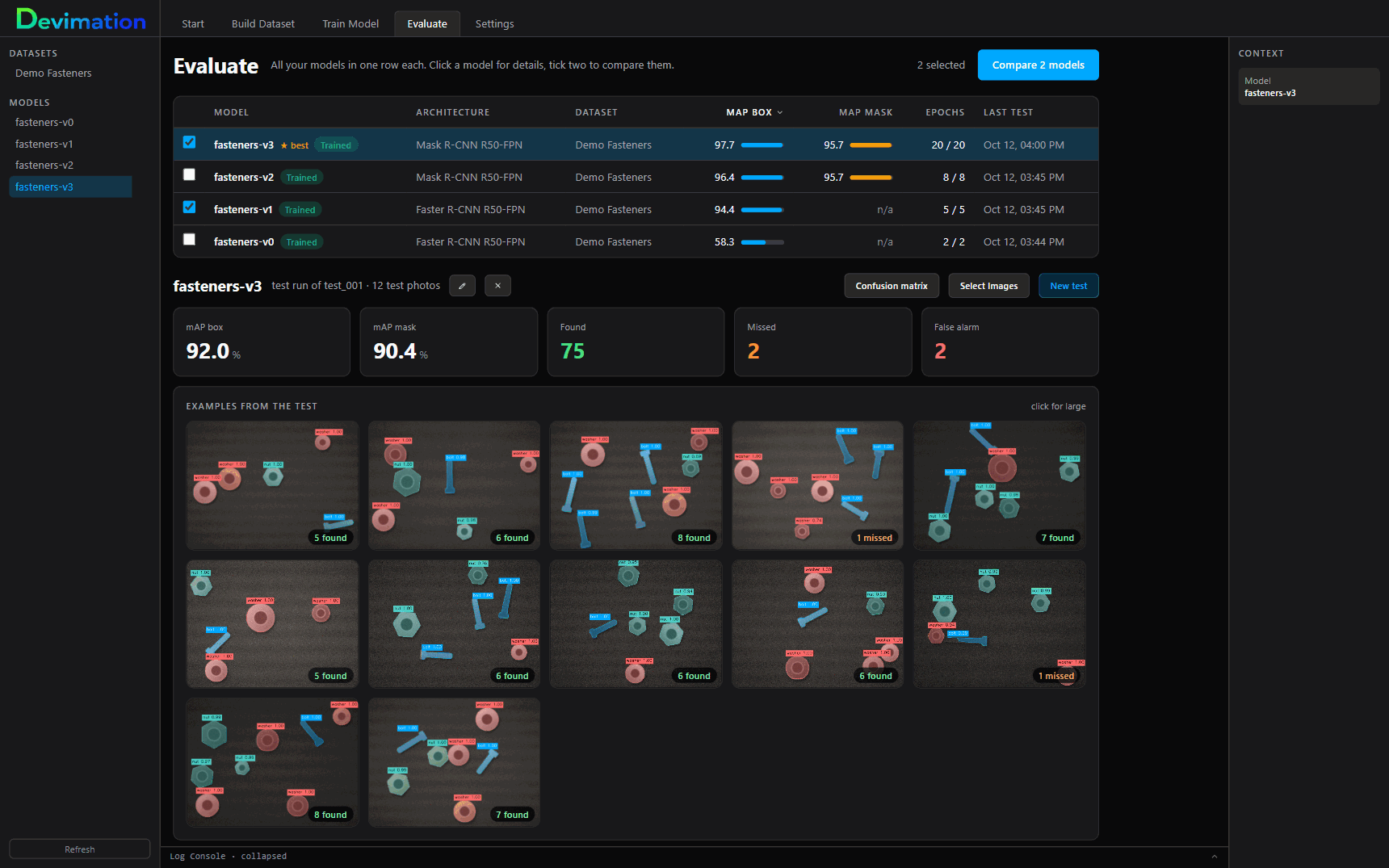
All your tested models stand in one ranking, best score on top. Pick two of them, for example one from before and one from after you added more images.

You get their scores and results side by side, so you can see which one is better and keep that one.

The Devimation Studio model ranking: four tested models in one table with their scores, best on top, and two of them ticked to compare

What you need

Computer

Windows 10 (version 2004 or newer) or Windows 11, 64-bit. An NVIDIA GPU with at least 4 GB of VRAM (GPU memory) and a recent driver that supports CUDA 12.1. At least 16 GB of RAM, and about 10 GB of free disk space plus room for your images and models.

For faster training

A GPU with 8 GB of VRAM or more, 32 GB of RAM and an SSD. The largest model size needs at least 10 GB of VRAM.

Internet

Only to sign in with your Devimation account, which activates your license, and to download the base model that training starts from, once per model size.

Language

The app works in English, Dutch, German, French and Spanish.

Need a backend?

Do you need a backend that connects the model to your own program, or a model for a specific application? Describe what you need and we will see whether we can build it for you.

Send a backend request